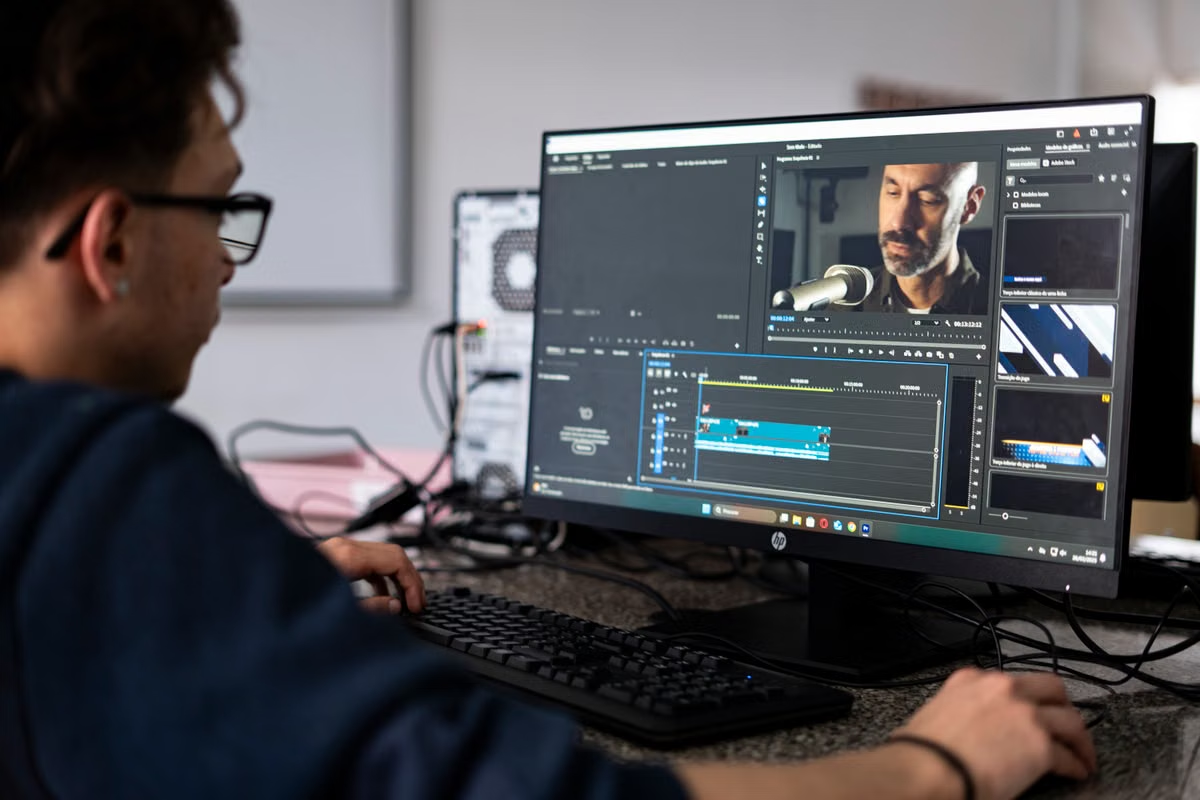
Remote editing feels choppy, playback changes quality, or files take too long to move? Do not choose a remote Mac from a single speed-test result. Test stability, input response, continuous playback, and file transfer with a real Final Cut Pro 12.3 project.
If you edit short social videos, test first and consider lowering the remote display quality. If you work on 4K features, heavy motion graphics, or color-sensitive deliverables, complete the entire workflow before renting for production.
Who should use this guide?
This guide is for Windows-based editors, freelancers, content creators, and small teams that occasionally need Final Cut Pro 12.3.
It is also for anyone deciding whether a remote Mac can handle a real project, rather than merely opening the application or playing a short sample clip.
Single speed numbers give the wrong answer
Remote Final Cut Pro work contains three separate paths:
- Interactive display traffic: your mouse, keyboard, timeline, viewer, and remote screen move between your device and the Mac.
- Media transfer: source footage, libraries, cache files, exports, and review files move through the connection.
- Remote computation: the Mac decodes media, renders effects, generates previews, and exports the final file.
These paths can fail independently. A fast connection may still feel slow when latency varies or packets are lost. A smooth viewer does not prove that a large library will upload reliably. A fast export does not prove that the remote screen will remain responsive during background rendering.
Apple’s high-performance Screen Sharing guidance includes a bandwidth requirement for a specific Mac-to-Mac mode with defined device, software, and connection conditions. That requirement should not be treated as the minimum for Windows access, VNC, or a web console. Read the Apple Screen Sharing documentation as a boundary for that documented mode, not as a universal remote-editing promise.
The first hard data point is the product version itself: Apple’s release record lists Final Cut Pro 12.3 as released on June 30, 2026. Confirm that the remote Mac has the required application version before comparing network behavior, because a different version may change media handling or background tasks. See Apple’s Final Cut Pro 12.3 release record.
Your acceptance test should use one representative project and record:
- Connection drops or reconnections.
- Mouse and keyboard response.
- Timeline scrubbing.
- Continuous video and audio playback.
- Viewer quality changes.
- Proxy playback.
- Original-media review.
- Export completion.
- Upload and download recovery after interruption.
A speed test can be one observation, but it cannot replace this project test.
Important: Lowering remote display quality can make the screen easier to transmit. It does not make the remote Mac export faster, decode difficult media faster, or render a heavy title more quickly.
Short-form editors need a role-specific baseline
Short-form creators usually need to browse clips, cut talking-head footage, add captions, make light color adjustments, and review revisions. That workflow may be suitable for a remote Mac even when a long 4K timeline would not be.
Start with a project that resembles your normal delivery. Include the type of captions, music, transitions, and review changes you actually receive. Do not use an empty library or a single short clip as your only test.
Check whether you can complete these actions without repeated pauses:
- Open the library and locate the required media.
- Skim several clips in the browser.
- Move the playhead through a talking-head section.
- Make ordinary cuts.
- Add captions or simple titles.
- Review a correction while another person watches.
- Export the usual delivery format.
- Retrieve the exported file.
Final Cut Pro’s media management options affect what the remote Mac must access during editing. Apple’s official media import guidance explains how imported media can be copied or referenced. That distinction matters: a library that references files outside the expected storage path can fail even when the connection itself is stable.
For this role, a reasonable decision is conditional rather than numeric:
- If browsing, cutting, captions, review, and export remain usable on the representative project, choose a short rental period for occasional work.
- If the viewer becomes difficult to follow but the edit remains responsive, try a lower remote display quality before changing the Mac configuration.
- If the library cannot locate media or exports cannot be retrieved reliably, stop and fix the storage or file-transfer workflow first.
- If the timeline is responsive but export time is excessive, investigate the remote Mac, codec, effects, or render state rather than immediately buying more bandwidth.
Long-form editors need sustained 4K validation
A 4K project requires a longer and stricter test because a short smooth playback sample can hide problems that appear after sustained use. The acceptance target is not merely “the timeline opened.” It is a repeatable sequence from media preparation to final delivery.
Use the same project to test three states:
- Proxy playback: edit and review with proxy media when the workflow supports it.
- Original-media review: inspect important shots using the source media.
- Final export: render and retrieve the actual delivery file.
Proxy media can reduce the playback and storage pressure placed on Final Cut Pro. It cannot repair an unstable remote connection, guarantee smooth original-media playback, or prove that the final export will succeed. Apple’s documentation distinguishes media settings and workflow choices; use the Final Cut Pro media import reference when checking how your library is built.
Can proxy media lower the network requirement for remote editing?
It can lower the amount of media work the remote Mac performs during editing, and it may make interactive playback easier. It does not remove the need for a stable connection because the remote display still has to reach you. It also does not remove the need to transfer original media when you need full-quality review or final delivery. Re-test if you change codecs, frame rates, storage locations, or the number of simultaneous collaborators.
During the long-form test, observe whether:
- Playback quality changes after sustained use.
- Audio and picture appear to lose sync from your point of view.
- The connection reconnects during a long review.
- Timeline scrubbing remains predictable.
- Original-media checks behave differently from proxy playback.
- The final export completes and can be downloaded or delivered.
A project that works only in proxy mode may still be useful for rough cuts, selects, and revision notes. It should not automatically be approved for final finishing.
Is Final Cut Pro remote playback stuttering caused by the network or the Mac configuration?
It may be either, or both. Network symptoms include changing viewer quality, delayed input, reconnects, and inconsistent response. Configuration or workload symptoms include long background tasks, slow decoding, effects that need rendering, or an export that progresses slowly while the connection remains responsive. Test the same timeline in proxy and original-media modes, then compare the viewer, input response, and background task state.
Motion-heavy creators need bottleneck separation
Titles, transitions, masks, captions, and layered compositions create a different acceptance problem. The remote screen may look delayed because of transmission, while the underlying Mac is still rendering. Alternatively, the Mac may be idle while an unstable connection makes every mouse movement feel late.
Use a representative section with the actual title templates, transitions, masks, and layers used in your work. Then check three things separately:
- Remote interaction: Can you place the playhead, select clips, adjust controls, and make precise changes?
- Background work: Are render or analysis tasks still running?
- Visible playback: Does the completed section play consistently after rendering?
Final Cut Pro exposes background work through its task controls. Use Apple’s Background Tasks documentation to understand what the application is processing instead of judging every delay as a network fault.
The viewer also has display and playback settings that can affect what you see remotely. Apple’s Viewer settings reference is the right place to confirm those controls. A lower display setting may improve the remote viewing experience, but it does not change the actual render workload.
For motion-heavy work:
- If input is delayed while background tasks are quiet, test the connection and remote display settings.
- If input is normal but playback remains incomplete while tasks are active, wait for rendering or test the Mac workload.
- If playback is acceptable after rendering but not before it, separate preview expectations from final-output expectations.
- If the project is color-sensitive, do not approve a remote workflow from the streamed viewer alone. Inspect the exported file on a trusted local display.
Mobile editors need an unstable-connection plan
Hotel Wi-Fi, shared office networks, and mobile hotspots can change during a session. They may be adequate for a short revision but unsuitable for uploading a large library or downloading a final master.
Separate the work into different windows:
- Upload or synchronize media before the editing session.
- Edit and review while the connection is quiet.
- Export on the remote Mac.
- Retrieve the final file after the interactive session ends.
This avoids judging the remote editing experience while a large transfer consumes the same path. It also gives you a clearer failure boundary. If the connection drops during an upload, you need a recovery plan. If the screen reconnects but the project remains open, that is a different result from losing the file transfer.
Can you edit 4K video over Wi-Fi on a remote Mac?
Yes, it can be possible for some workflows, but Wi-Fi alone is not an acceptance criterion. Test the exact network, device, location, and project. Proxy editing and short revision sessions may work where original-media finishing does not. Re-test when you move from a private connection to hotel Wi-Fi or a mobile hotspot.
After a reconnection, verify:
- The remote session returns to the expected Mac.
- The library still opens.
- The latest changes are present.
- Media paths remain available.
- Background tasks have not been misunderstood as completed.
- The export or transfer can be resumed or restarted safely.
Do not promise yourself that every public network will support full production. Mobile access is best treated as a conditional editing option until your own project proves otherwise.
Remote Mac rental testing sequence
Use this five-stage acceptance sequence with a real project.
1. Prepare the test project
Choose one project that represents your usual work. Include the normal media types, timeline length, captions, effects, library structure, and delivery format. Avoid a demo project designed to succeed.
2. Establish the ordinary connection
Use the Windows computer, network, display method, and location you expect to use. Do not test on an office connection and assume the same result at home or in a hotel.
3. Test interaction before playback
Open the library, browse clips, scrub the timeline, move edits, adjust a title, and save a change. Record delayed clicks, reconnects, and unexpected viewer-quality changes.
4. Test sustained playback and background work
Run a continuous section rather than a single short preview. Repeat the test with proxy media and original media where appropriate. Check Final Cut Pro’s background tasks instead of relying only on what the viewer looks like.
5. Test delivery and recovery
Export the real format, retrieve the file, and confirm that a dropped connection does not leave you unsure about the project state. For a team, repeat the handoff with the people who will actually upload media, approve changes, and collect deliverables.
How do you test editing latency before renting a remote Mac?
Bring a representative project, your normal connection, and your normal access method. Measure whether you can perform cuts, scrubbing, captions, review, and export without repeated interruptions. If only a simple sample works, the test is incomplete. If you do not have a Mac to test, review the available KVMFLUX remote Mac use cases and select a rental period long enough to complete the same validation sequence.
Choose by creator role, not by a headline number
Use these conditions to make the decision:
- If you mainly create short clips and the representative project passes browsing, cutting, review, and export, choose a short-term remote Mac test.
- If you edit 4K long-form content, choose a rental only after proxy playback, original-media review, export, and file retrieval all pass.
- If you use heavy titles, masks, or layered effects, choose a workflow that separates display delay from background rendering before changing network plans.
- If you work from changing public networks, choose remote editing for revision work first, not as an assumed full-production replacement.
- If accurate color judgment is part of delivery, choose local final inspection even when the remote edit is acceptable.
- If several people share the project, choose only after testing permissions, media paths, handoffs, and responsibility for the exported file.
| Creator role | Minimum acceptance evidence | Safer first decision |
|---|---|---|
| Short-form and social video editor | Browsing, cuts, captions, review, and export remain usable | Test a short remote Mac rental |
| 4K long-form editor | Proxy playback, original-media checks, sustained review, and final export pass | Complete full workflow before production use |
| Motion and title-heavy creator | Input response, background tasks, rendered playback, and export are understood separately | Diagnose workload before increasing bandwidth |
| Mobile or travel editor | Reconnection, project state, media paths, and file recovery are verified | Use for controlled revisions first |
| Small production team | Shared access, handoff, storage path, export ownership, and retrieval are tested | Approve only after a team project rehearsal |
| Observed result | Likely next action | Do not conclude yet |
|---|---|---|
| Viewer quality changes but input remains usable | Adjust remote display quality and retest | Do not assume the Mac is underpowered |
| Input is delayed while background tasks are quiet | Investigate connection stability and access method | Do not assume proxy media will fix it |
| Input is responsive while rendering remains slow | Check effects, media mode, and Mac workload | Do not buy bandwidth as the first response |
| Proxy mode works but original media fails | Keep proxy use for rough cuts and diagnose finishing needs | Do not approve final delivery automatically |
| Export succeeds but retrieval fails | Fix file-transfer and recovery workflow | Do not call the project production-ready |
| One person succeeds but handoff fails | Test permissions, paths, and ownership | Do not treat one successful session as team readiness |
Final recommendation before choosing a rental period
The answer to how much internet speed Final Cut Pro 12.3 remote editing needs is not a fixed threshold. Your role, project, access method, media mode, and delivery responsibility determine whether the workflow is acceptable.
A local Windows setup still avoids streamed-display delay and file-transfer dependencies, but it cannot natively provide the complete macOS workflow required by Final Cut Pro. A self-owned Mac removes the rental cycle, yet it requires upfront hardware spending, maintenance, and a machine that may sit unused between projects. Remote access is not ideal for every long-running production or every color-critical decision, but it can be a sensible way to handle occasional Mac-only editing when you validate the real project first.
Before committing, prepare one representative library, use your ordinary network, and run the complete acceptance sequence. If you do not have a Mac available for testing, compare the available KVMFLUX plans, check the access method and location, and choose a period that covers editing, review, export, and file retrieval rather than judging the service from a speed test alone.
Further Reading
- Remote Creative Workflow Acceptance Checklist
- How to Choose a Remote Mac Configuration for Heavy Workloads
- Should You Rent a Remote Mac for One Week or One Month?
Edit Final Cut Pro Projects on a Remote Mac
Rent a dedicated Mac mini M4 from KVMFLUX and access a full macOS desktop through VNC from your Windows PC. Choose a nearby KVMFLUX region to reduce latency during timeline editing, playback, and review sessions. Select a daily, weekly, monthly, or quarterly rental period that matches your production schedule. Start with KVMFLUX to test your real Final Cut Pro workflow on dedicated Apple Silicon hardware before extending your rental.