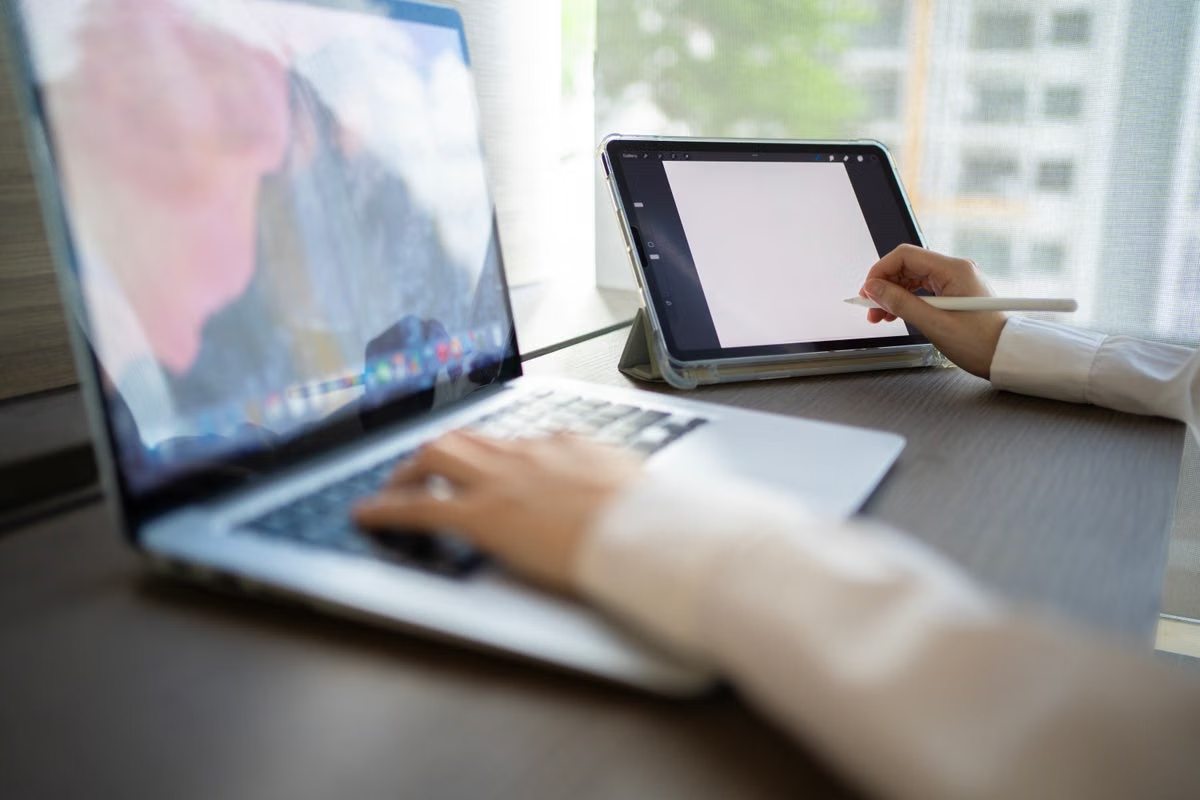
You’re switching windows constantly on your iPad Pro M5, but adding another screen would make your travel kit harder to carry, power, and set up.
Fastest solution: keep a single screen for frequent moves and short sessions; add a portable monitor only when you stay put and use a remote Mac for long, multi-window work. Test one real workday before buying.
Who should use this guide?
This is for remote workers who carry only an iPad Pro M5 on short trips but still need occasional access to macOS. It also suits developers and creators staying in an apartment or coworking space who use a remote Mac throughout the day.
If you are already comparing portable monitors, the real question is not whether a second panel can display an image. It is whether the extra display space offsets carrying, powering, positioning, protecting, and disconnecting another device.
Is a portable monitor necessary for an iPad Pro M5 in 2026?
Usually, no. A portable monitor should not be the default accessory for every digital nomad setup.
Choose the single-screen setup when you change locations often, work in short sessions, review rather than create, or can finish most tasks in iPadOS. Choose dual screens when you remain in one place, work for long periods through a remote Mac, and regularly compare code, terminal output, documentation, timelines, canvases, or dashboards.
Delay the purchase if you cannot identify a recurring task that is blocked by the iPad’s available workspace. A vague feeling that “more screen would be better” is not enough. Write down a real workday first.
Apple confirms the iPad Pro M5 product line and its USB-C connectivity in its official iPad Pro technical specifications. That confirms the platform and connection standard, but it does not confirm that every remote desktop client will map a second display in the same way.
The distinction matters. iPadOS 26 supports windowed multitasking, while a remote Mac client may still treat the remote desktop as one canvas. Apple’s iPadOS multitasking documentation and connected-display developer documentation describe system capabilities, not a guarantee for every VNC or remote access application.
Start with your actual workday
Before looking at screen size, list the tasks you perform in a normal day:
- Reading or replying to messages
- Editing documents
- Reviewing pull requests
- Writing and testing code
- Monitoring terminal output
- Comparing documentation with an active project
- Reviewing images, video, spreadsheets, or dashboards
- Connecting to a remote Mac for macOS-only software
Mark each task as local, remote, or mixed. A local task may stay entirely on the iPad. A remote task requires macOS. A mixed task might use the iPad for reference and the remote Mac for execution.
This tells you more than a display specification. If your remote Mac is needed only to approve a build, check a macOS application, or inspect a project, a second screen may add packing overhead without solving a meaningful problem.
Frequent movers should keep a single-screen setup
Frequent movers should generally keep the iPad Pro M5 as their only screen.
That includes people working from airport lounges, trains, cafés, short hotel stops, and accommodation that changes regularly. In those settings, you pay for a second screen every time you unpack it. You also need a safe surface, a cable path, a charging plan, enough privacy, and a reliable way to pack it again without damaging the panel.
A portable monitor can improve visibility, but the benefit may disappear when your working session is brief. If you spend more time arranging the screen than using it, the accessory is working against your travel pattern.
Can an iPad Pro M5 connected to a remote Mac provide enough screen space on its own?
Yes, when your remote Mac tasks are selective rather than continuous. A single screen is often enough for code review, document approval, short terminal sessions, administrative work, and checking a macOS-only application. It is less comfortable when you must keep several reference windows visible while editing another application.
The important test is not whether the remote Mac opens. It is whether you can complete the task without losing context after every window switch.
When single screen is the sensible choice
Keep the single-screen setup if most of these statements are true:
- You change accommodation or workspace frequently.
- Your longest focused session is occasional rather than routine.
- You mainly review, approve, communicate, or make small edits.
- Your iPad handles your reference material locally.
- You can tolerate switching between the remote Mac and documentation.
- You do not need a permanent timeline, canvas, terminal, or dashboard view.
- Your workspace rarely has a stable desk and power outlet.
For these users, the remote Mac remains valuable because it keeps the macOS environment online. Your iPad becomes the entry point rather than the entire workstation. If the iPad is lost or damaged, the remote environment can remain available, subject to your account and recovery arrangements.
What should make you reconsider?
Switch toward a fixed desk or dual-screen arrangement when window switching becomes a repeated work blocker rather than a minor inconvenience. A good trigger is a task that requires you to compare two states continuously: source code and output, a timeline and preview, a spreadsheet and dashboard, or a design canvas and reference material.
Do not react to one unusually busy day. Repeat the same project under normal conditions. If the same context loss appears each time, the second screen has a clearer business case.
Travel note: The weight of a portable monitor is only one part of the burden. Include its protective sleeve, cable, charger, adapter, desk space, setup time, and packing routine when judging the real cost.
Remote developers gain more from dual screens when work is continuous
Developers who stay in one location for a substantial period are more likely to benefit from a portable monitor.
A typical remote development layout places the editor on one display, the terminal or build output on another, and documentation somewhere that remains available during the task. That arrangement can reduce repeated context changes. It does not automatically improve the underlying remote Mac connection, and it does not remove network latency.
The key question is whether the second display gives you a stable second context. If the remote client mirrors the same desktop, compresses the workspace, or handles pointer movement poorly, the theoretical benefit may not appear in practice.
Does remote development require an iPad dual-screen setup?
No. Remote development can work on one iPad screen when you use short command-line sessions, review code, or work on a project with limited visual context. Dual screens become more useful when you spend long sessions editing code while watching logs, checking documentation, and interacting with a graphical macOS tool.
Test the complete interaction, not just whether the monitor turns on:
- Move the pointer between the iPad and the external display.
- Use your normal keyboard shortcuts.
- Open the editor, terminal, documentation, and output windows.
- Check whether text remains readable at the chosen scaling.
- Disconnect and reconnect the remote session.
- Confirm where windows appear after reconnection.
- Repeat the process after changing networks.
Apple documents USB-C accessory connections in its official iPad accessory guide. That is useful for confirming the iPad-side connection path, but your remote client still determines how macOS windows are presented.
First step: validate the remote Mac before buying
A portable monitor cannot correct a weak remote workflow. First confirm that the remote Mac itself is usable from the iPad.
Apple’s Remote Desktop VNC documentation explains VNC configuration concepts. Your actual experience will also depend on the client, network route, input handling, display scaling, and reconnect behavior.
Before committing to a dual-screen purchase, complete these checks:
- [ ] Connect to the remote Mac from the same iPad you will carry.
- [ ] Use your normal keyboard and pointer for a real project.
- [ ] Open the applications you actually need, not just a test desktop.
- [ ] Compare single-screen and external-screen window layouts.
- [ ] Check whether the client supports a second display or only a larger single canvas.
- [ ] Test pointer movement at the edges of both screens.
- [ ] Disconnect the network briefly and confirm how the session recovers.
- [ ] Repeat the test from a café, apartment, or coworking connection you commonly use.
- [ ] Confirm that the monitor and iPad can be powered without removing access to your other essential devices.
- [ ] Pack and unpack the complete kit before deciding that the workflow is comfortable.
If any critical item fails, do not assume a different monitor will solve it. The limitation may be in the client, the connection method, or the remote desktop layout.
Creators and data workers should choose by visual workflow
Creators and data workers should decide by visual workflow, not by the number of available windows.
A writer may need a reference document beside a draft. A designer may need a canvas beside source material. A video editor may want a timeline, preview, and asset browser visible together. A data worker may need a spreadsheet beside a dashboard or query output.
These workflows can use three different layouts:
- Single-screen layout: everything is maximized on the iPad, with deliberate window switching.
- Hybrid layout: reference material stays local on the iPad while the remote Mac handles the main application.
- Dual-screen remote layout: the remote Mac workspace is distributed across the iPad and portable monitor.
The hybrid arrangement is often overlooked. It may provide much of the benefit without requiring the remote Mac client to map two macOS displays perfectly. It also keeps the iPad useful if the remote session briefly degrades.
Is an iPad Pro M5 with a portable monitor suitable for remote office work?
It can be, provided your work is based on documents, communication, review, and moderate multitasking rather than color-critical or latency-sensitive production. A second display gives you more room, but it does not guarantee accurate color, comfortable scaling, responsive pointer movement, or reliable remote rendering.
For client work, use one complete project as your acceptance test. Import the source files, edit them, review the result, make corrections, and export the deliverable. If the workflow breaks at preview, scaling, input, or export, the additional display has not solved the actual requirement.
Production warning: More pixels do not equal a production-ready setup. For visual delivery, verify color, scaling, input delay, file handling, and export behavior with the exact remote application and client you plan to use.
Coworking residents should compare fixed and portable displays
People staying in one city for weeks or months should compare three choices: carry a portable monitor every day, use a display provided by the coworking space, or deploy a dual-screen setup only at a fixed desk.
A supplied display may be more convenient if its connection, privacy, and availability are dependable. A personal portable monitor gives you control, but you must carry it and protect it. A fixed setup is usually the most comfortable when your accommodation has a stable desk, while the remote Mac remains online even when you leave that desk.
Check these operational details before choosing:
- Does the workspace provide a compatible connection path?
- Can you keep the display private during client work?
- Is power available where you sit?
- Can you leave the monitor safely at the desk?
- Can you restore the workspace quickly when your booking ends?
- Does the remote client preserve your window arrangement after reconnecting?
- Can you continue with the iPad alone if the shared display is unavailable?
If your desk is stable but your macOS environment must remain continuously available, using the iPad Pro M5 as a portable entry point and keeping the main environment on a remote Mac can be more flexible than carrying a complete workstation.
You can also review KVMFLUX remote Mac use cases when your decision depends more on the macOS environment than on the display itself. The display should solve a verified workflow problem; it should not become a substitute for testing remote access.
Run a single-screen and dual-screen workday
A mixed freelance schedule needs evidence rather than a general rule. Run the same type of project in both configurations.
For the single-screen test, carry only the iPad Pro M5 and the input devices you already use. Connect to the remote Mac when needed. For the dual-screen test, add the monitor, its cables, power arrangement, stand or case, and the same remote client.
Record these observations:
- Which tasks were completed without changing windows?
- Where did context switching interrupt concentration?
- How often did you rearrange the workspace?
- How many times did you set up or pack the monitor?
- Did the remote session reconnect cleanly?
- Did the pointer and keyboard behave consistently?
- Could you read code, documents, timelines, or tables at a comfortable scale?
- Did the extra screen remain useful throughout the project?
- Did the complete kit feel acceptable in transit?
Do not record only productivity impressions. A dual-screen arrangement may feel faster but still be unsuitable if it creates repeated setup problems, privacy concerns, or charging conflicts.
A decision table for your travel kit
| Your working pattern | Best starting choice | Why | Change the choice when |
|---|---|---|---|
| Frequent moves and short sessions | iPad Pro M5 only | Less setup, less packing, and fewer cables | Remote tasks become continuous and window switching blocks delivery |
| Travel with occasional macOS access | Single screen plus remote Mac | The iPad remains a light entry point while macOS stays available remotely | A recurring project requires two persistent contexts |
| Long stays with code and terminal work | Portable monitor after testing | A second context can help during extended development sessions | The client cannot map displays reliably or reconnection is poor |
| Visual editing or dashboard work | Test hybrid and dual-screen layouts | Local reference plus remote main window may be enough | A complete project requires persistent visual separation |
| Stable coworking or apartment desk | Fixed dual-screen setup if available | Avoids carrying the monitor every day | The supplied display is unreliable, unavailable, or unsuitable for privacy |
| Uncertain workload | Delay the purchase | Preserves flexibility until a real bottleneck is clear | Two comparable workday tests show the same limitation |
Make the purchase decision after the test
The most defensible choice comes from three variables: how often you move, how demanding your remote Mac tasks are, and how often you have a stable desk.
Choose iPad Pro M5 only if mobility dominates and your remote work is mostly review, communication, short edits, or occasional macOS access.
Choose iPad Pro M5 plus a portable monitor if you stay in one place, use the remote Mac for long sessions, and the second context remains useful throughout a real project.
Choose a fixed monitor at your regular workspace if you stay for extended periods and carrying the display offers no benefit outside that location.
Choose to wait if the real bottleneck is network stability, client behavior, keyboard input, or access to a persistent macOS environment. A larger workspace cannot repair those problems.
If you need a repeatable test period, compare remote Mac rental periods and real workday testing before buying additional hardware. The purpose is not to replace every local device. It is to determine whether a stable remote Mac solves the problem you actually have.
A portable monitor may be the wrong investment when your current setup fails because the macOS environment is unavailable, the remote session does not recover cleanly, or your project is too short to justify daily setup. In those cases, carrying another screen adds weight while leaving the main constraint untouched. Testing a KVMFLUX remote Mac through a weekly or monthly plan can give you a stable macOS environment first, after which you can decide whether dual-screen hardware adds enough value.
For a digital nomad, the better purchase is not automatically the one with more display area. Start with the iPad Pro M5 and a real remote Mac task, compare one-screen and two-screen workdays, then pack the monitor only if the repeated workflow benefit is greater than its carrying and setup cost. You can explore KVMFLUX’s available remote Mac options when you need a temporary macOS workspace before making that hardware decision.
Keep Your iPad Setup Light With KVMFLUX
Access a dedicated remote Mac from your iPad Pro M5 without carrying a full desktop setup. Run macOS apps, development tools, and demanding workflows through a remote Mac wherever you work. Choose a KVMFLUX plan that matches your workload and add a portable monitor only when your daily tasks require more screen space. Start your remote Mac workflow with KVMFLUX and build a travel setup around the work you actually do.