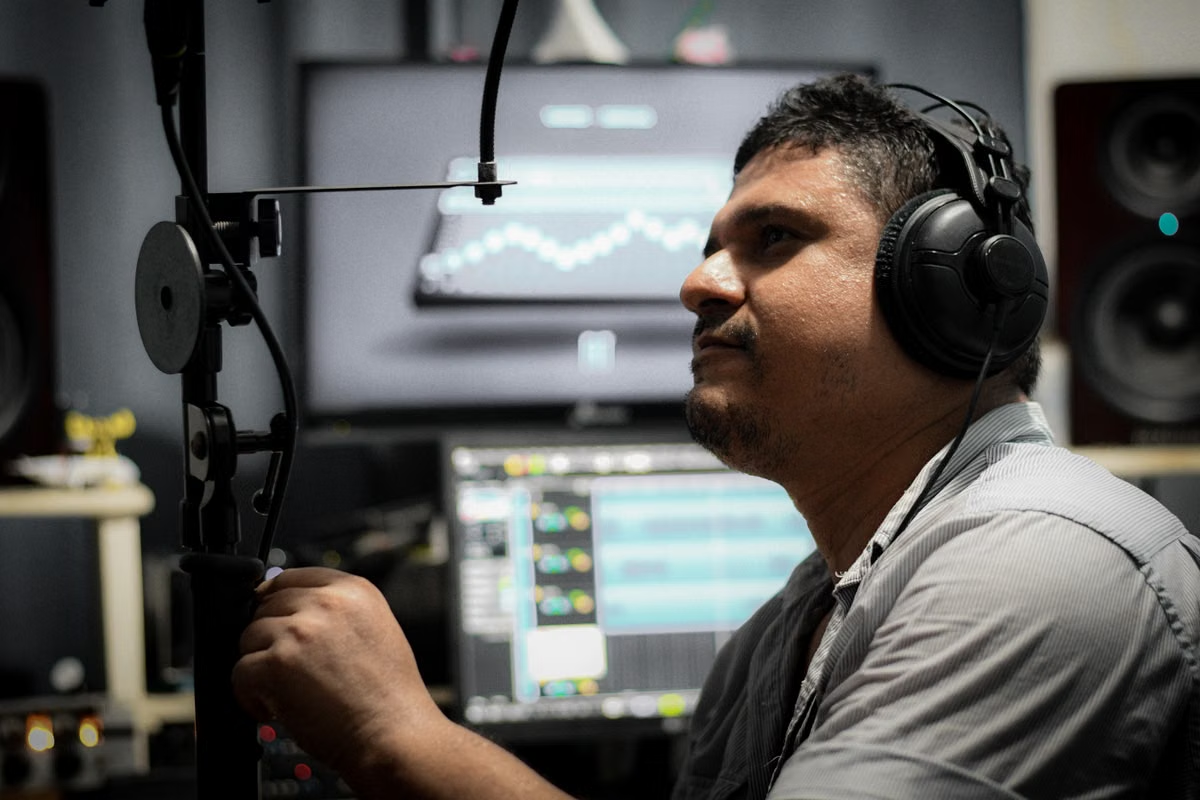
MacWhisper’s official privacy guidance says transcription defaults to local processing on a Mac or iOS device, while some cloud features may send data to a service.
Symptom: You need interview transcripts, but you do not yet know whether the workflow is permitted or suitable for analysis.
Fastest route: Test an institution-approved sample, verify each processing path, and check the transcript and handoff before using formal recordings.
MacWhisper can be a candidate for university interview transcription, but local processing, usable research material, and institutional approval are separate decisions. Do not treat a local model or a remote Mac as proof of compliance.
Who this guide is for
Qualitative researchers who need transcripts they can check and analyze.
Graduate and doctoral researchers comparing local, cloud, and manual transcription.
Research IT staff assessing software, access, and handoff responsibilities.
Last updated October 18, 2026. Current processing details were checked against MacWhisper’s privacy guidance, speaker-recognition documentation, command-line documentation, and file-location guidance. Recheck the app’s current settings and your institution’s rules before processing research recordings.
Processing paths and data boundaries
A local transcription model and a cloud feature are not interchangeable from a data-management perspective. MacWhisper’s documentation describes local transcription as the default, but also notes that using cloud transcription, translation, or AI prompts may send data to the relevant service. Which path applies depends on the feature and current settings you use.
Before importing a recording, make a short processing inventory:
- Transcription: Identify whether the selected model runs locally or uses a cloud service. Record the setting you actually selected rather than relying on the app’s default.
- Translation: Check separately. A transcript generated locally does not establish that a later translation step is local.
- AI prompts: Treat prompts as their own data path. Check whether you would submit audio, transcript text, or other study details, and identify the service involved.
- Recipient and access: For any external processing, establish what data is sent, to whom, and under which terms. If the documentation or settings do not answer that, do not use participant data until you have an answer.
- Storage: Check where the audio, transcript, application data, and model files are stored. MacWhisper documents file locations for its local data, but you still need to verify the locations on the machine you will use.
The institutional question is separate: a technically local workflow may still need approval under your study protocol, data-management plan, consent terms, or university rules. Public guidance from a university on evaluating research data-collection tools and a university on recording and transcript data management illustrates why the tool choice must be checked against the research process.
Important: “Processed locally” describes a software data path. It does not establish that a recording is approved for a particular device, account, remote host, or research project.
Transcript usability for analysis
Treat automated output as a draft for review, not as a validated research record. A transcript that looks readable may still be unsuitable for your method if it mishandles a key term, merges speakers, or omits an interruption that matters to interpretation.
Use an approved, representative sample. It should resemble the material you actually expect to process in relevant ways, such as audio quality, accents, technical vocabulary, and the number of speakers. Do not use a sensitive recording just because it is convenient. If your institution has not authorized a sample for this purpose, ask what sample is acceptable before testing.
During review, check:
- Research terminology: Search for names, acronyms, specialist terms, and uncommon words. Compare each against the audio. A plausible-looking substitution can change the meaning of an answer.
- Accents and speaking style: Check sections with unfamiliar accents, quiet speech, rapid delivery, or long pauses. Do not assume a model that works on one speaker will perform equally well on another.
- Overlap and interruption: Listen to parts where people speak over one another. Confirm whether the transcript preserves the turn-taking your analysis needs.
- Method-specific detail: Decide whether your study requires verbatim speech, readable edited text, non-verbal markers, or another convention. Set the standard before judging whether the output is usable.
- Correction record: Keep a clear process for reviewing and correcting text. If changes matter to coding or quotation, record how your team handles them in line with the study protocol.
Do not use an unsupported accuracy percentage to approve the tool. Accuracy depends on the recording, speakers, vocabulary, and the transcription standard your study requires. Your acceptance test should be based on those conditions and on human review, not a general model claim.
For automated or repeatable exports, MacWhisper’s command-line documentation describes output options. Check the actual exported files against your analysis workflow; the existence of an export format does not prove that it preserves the structure your team needs.
Speaker labels, timestamps, and transcript structure
Speaker recognition can help organize a draft, but software labels do not confirm participant identity. MacWhisper’s speaker-recognition guide describes the feature; your research team still needs to test how it behaves on the type of interview you conduct.
Check the following against the research design:
- Turn separation: Can you distinguish each participant’s turns in a conversation with interruptions or overlapping speech?
- Label errors: Look for missed turns, one person split into multiple labels, or multiple people merged into one. Confirm that you can correct those errors in the workflow you intend to use.
- Identity mapping: Keep speaker labels separate from confirmed participant identities unless your approved protocol explicitly supports that mapping. A label such as “Speaker 1” is not evidence of who spoke.
- Timestamp granularity: Decide whether you need timestamps for locating quotations, checking audio, or an audit trail. Verify that the output provides the level of detail your team expects.
- Export structure: Open the exported transcript in the tools used for coding and review. Confirm that speaker labels and timestamps remain legible and attached to the correct text.
If you cannot reliably review and correct the labels, do not use them as the basis for participant attribution or analysis. Keep the audio available only as permitted by your retention rules, and have a researcher verify any quotation against the recording.
File handling and research handoff
A successful test is more than importing a file and seeing text appear. Your team needs a controlled route from an approved sample to a reviewed transcript, a defined storage location, and a documented handoff.
Use this acceptance sequence before considering batch work:
- Confirm permission: Check that the sample, device, software, and processing path are permitted for the test.
- Document the setup: Record the app version and relevant processing settings so another team member can understand what was tested. Do not assume those settings are identical across users or devices.
- Import one sample: Use the authorized sample and note where the original audio is stored before and after processing.
- Review the transcript: Check terminology, overlap, speaker boundaries, timestamps, and the transcription convention required by your study.
- Export and reopen: Export the transcript in the format your team intends to use. Reopen it in the receiving tool and verify that required structure survived.
- Test backup and handoff: Establish who can access the audio and transcript, how access is transferred, and how you prevent an unapproved copy from becoming a team working file.
- Decide whether to expand: Move to additional files only after the sample has passed review and the responsible person has confirmed the workflow.
Do not assume that application data, source audio, transcripts, and model files all share one storage location. Check the machine directly and document where each item is kept. For a team handoff, define who is responsible for access, correction, retention, and deletion under the institution’s rules.
Remote access adds another boundary. You need to know where the host is, who can access the session and stored files, and how files move between your device and the host. If your team is considering that setup, review the remote Mac use cases as a technical option, then confirm separately whether your institution permits the host and transfer route for the intended data.
Common questions
Does local transcription mean the audio never leaves the Mac?
Not necessarily for every operation. The documented default applies to transcription, while cloud transcription, translation, and AI prompts may use a separate service. Check the setting and documentation for each feature you intend to use. Also review file synchronization, backups, and any transfer step outside the transcription app. If you cannot account for a path, treat it as unresolved rather than assuming it is local.
Will cloud transcription upload the interview audio?
A cloud transcription feature may send data to the service that performs it. Verify the current feature description and settings to establish what is sent and who receives it. The word “cloud” alone does not tell you whether audio, text, or both are transmitted. If you cannot confirm the recipient and permitted use, do not submit participant recordings; ask your research data or ethics contact first.
Can speaker labels go straight into qualitative coding?
No. Use them as draft segmentation that a researcher checks against the recording. Confirm turn boundaries, overlaps, and identity mapping before labels support coding or quotations. Keep the software’s labels distinct from participant identities unless your approved protocol defines how to link them. If correction is difficult or errors cannot be detected, choose a workflow with adequate human review instead.
Can you test the workflow without owning a Mac?
A remote Mac can help you validate the interface, export, and handoff using an approved non-sensitive sample. That test does not establish that formal recordings may be processed on the remote host. Before uploading any study material, verify host location, account access, transfer method, storage, and institutional approval. If those conditions are not settled, keep the test to a permitted sample or use another approved route.
Approval route and decision conditions
University policy determines whether a workflow is allowed; product documentation cannot make that decision for your project. Guidance on research tools involving human-subject data is a reminder to assess the tool in the context of the study and its data, not in isolation.
Use these branches to choose your next step:
- If your institution permits the intended processing path, the sample passes transcript and speaker review, and storage and handoff meet your study requirements, then document the settings and submit or retain the workflow as required by your local approval process.
- If you have no Mac and approval for remote testing is clear, then validate the workflow with a permitted, non-sensitive sample. Do not infer from a successful remote test that formal recordings are approved for that environment.
- If the policy allows only local processing, then disable cloud-dependent functions and verify that the selected transcription workflow remains local. Recheck translation and AI prompts separately rather than treating them as part of the same operation.
- If the sample fails a required quality check, labels cannot be corrected reliably, or the export loses essential structure, then do not expand to formal recordings. Revise the workflow or use an approved alternative.
- If approval, recipient, host access, or file location is unclear, then pause before importing formal material and ask the responsible university contact to resolve the question.
This approach keeps the decision testable: MacWhisper is a candidate when the processing route is permitted and the output meets the study’s review requirements. A local model is not an approval, and a remote Mac is not a privacy guarantee.
If your current route is an unapproved personal device, an unclear cloud service, or manual file transfers with no defined handoff, it leaves real gaps in access control, data location, and review responsibility. A local Mac may be a better fit if you need stable, repeated access and your institution supports that setup; a remote Mac can be useful for a short workflow check, but only when the host and data route are permitted. If you do not have a Mac and only need temporary macOS access, KVMFLUX offers a way to evaluate a remote environment without buying a machine; check KVMFLUX plans, and use only samples your institution allows until formal recording approval is explicit.
Further Reading
- Review research data boundaries and validate a reproducible Mac-based research workflow.
- Use an acceptance checklist to assess app controls, audit evidence, and approval readiness on managed Macs.
- Plan user access, file handoffs, and permissions for a shared remote Mac workflow.
FAQ
Can MacWhisper transcribe university interview recordings locally?
MacWhisper’s documentation says transcription defaults to local processing on a Mac or iOS device. That does not establish that every feature stays local: cloud transcription, translation, and AI prompts may involve sending data to a relevant service. Check the current app settings and official privacy guidance for the exact function you plan to use, then confirm that your institution permits the workflow.
Does MacWhisper upload audio when I use cloud transcription?
Cloud transcription is a different processing path from local-model transcription and may send data to the service used by that feature. Do not infer the recipient or the data sent from the word “cloud” alone. Before using interview material, verify the current feature settings, the applicable privacy documentation, and your institution’s rules for external processing. If those points are unclear, use an approved non-sensitive sample or pause.
Are MacWhisper speaker labels reliable enough to use as research identities?
Treat automated speaker labels as draft segmentation, not confirmed participant identities. Test the feature on an approved sample that resembles your interviews, then check overlaps, interruptions, changes in speaking style, and missed or merged turns. A researcher must verify identity and correct errors before labels support coding, quotation, or analysis. Follow your study protocol for recording and documenting those corrections.
Can I validate the workflow on a remote Mac if I do not own a Mac?
You can use a remote Mac to check the interface and file-handling workflow with a sample that your institution permits. Remote access does not itself establish where the host is located, who can access it, or whether formal recordings may be processed there. Confirm those conditions with your institution before uploading study material; if approval is uncertain, keep the test non-sensitive and do not use formal recordings.
Validate Your Interview Transcription Workflow on a Dedicated Mac
Rent a dedicated Mac mini M4 to evaluate your macOS transcription setup before using it for formal university interviews. Connect through VNC to test your desktop workflow on real Apple hardware, or use SSH for remote administration. Keep your test machine exclusive to you while you review file handling and institutional approval requirements. Choose a daily, weekly, monthly, or quarterly rental to match your evaluation period.