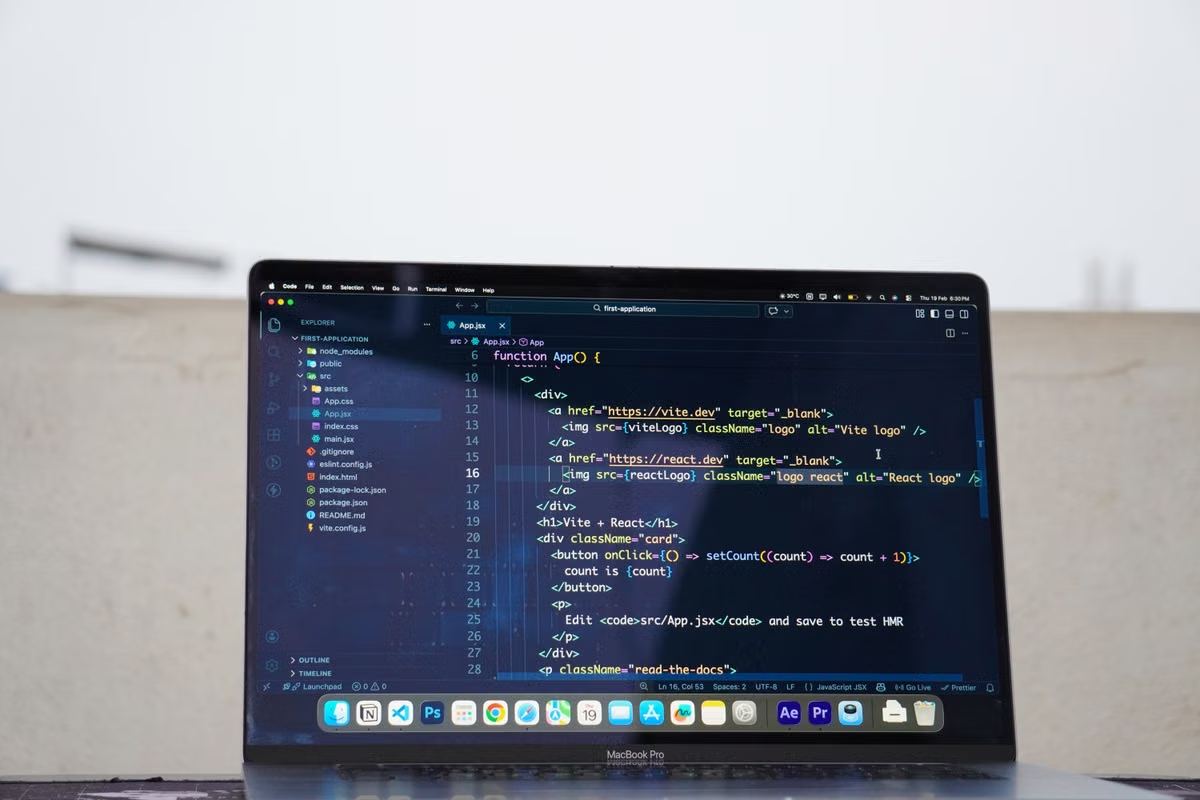
A single incompatible Xcode-and-macOS pairing is a stop condition, not a performance warning. Apple’s Xcode system requirements are release-specific, so remote Mac rental validation must begin with the exact host, macOS version, and Xcode 27 build. If that gate fails, stop testing speed and request a replacement node. If compatibility passes but real workloads or recovery fail, change the node or access setup. Adjust the configuration only when measured performance is the actual problem.
This guide is for iOS and macOS developers without a local Mac, DevOps engineers preparing a cloud build node, and technical leads accepting rented hardware. It is not a general Xcode installation tutorial. The goal is to produce evidence for one of four decisions: renew, use only for limited work, change configuration, or stop using the node.
Last updated September 1, 2026. Xcode status, system requirements, and tool behavior must be rechecked against Apple Developer and Apple Support documentation on the day of acceptance.
The acceptance gate
Start with identity and compatibility. Ask the provider for the assigned host details, then verify them from the machine rather than trusting a plan label.
system_profiler SPHardwareDataType
sw_vers
uname -m
xcodebuild -version
xcode-select -p
xcrun simctl list runtimes
Use placeholders for hostnames, usernames, project paths, and schemes. Do not paste credentials, signing keys, private repository URLs, or customer source code into an acceptance report.
| Check | Evidence to capture | Pass condition | Stop condition |
|---|---|---|---|
| Physical host identity | Hardware profile and serial information, with sensitive fields redacted | The delivered machine is a real Mac and matches the agreed architecture | The host is virtualized, unidentified, or has the wrong architecture |
| macOS and Xcode relationship | sw_vers, xcodebuild -version, Apple requirements page |
The exact Xcode 27 build is supported by the installed macOS release | Apple’s current requirements do not support the pairing |
| Developer directory | xcode-select -p and xcodebuild -version |
The selected developer directory points to the intended installation | The node silently selects another Xcode installation |
| SDK and runtime availability | xcodebuild -showsdks, xcrun simctl list runtimes |
The SDK and Simulator runtime required by the project are installed | The required SDK or runtime is absent |
| Account boundary | Local account list and permission review | Your account is separate and has the access promised by the plan | Another customer’s workspace or account remains visible |
Apple’s Xcode release notes are the authority for release-specific behavior and changes. Check the Xcode 27 release notes on the acceptance date. Do not use a media report, a reseller description, or a community post as proof that a particular macOS and Xcode combination is supported.
Decision rule: if the host is not a real Mac, the architecture is wrong, or Apple does not support the exact software pairing, stop. A successful login cannot override a compatibility failure.
Remote access and permissions
A rented machine is not ready for development when one connection method works. Validate each entrance you expect to use:
- SSH for command-line work, automation, and CI.
- VNC or macOS screen sharing for Xcode and Simulator.
- The provider’s web console or management console for recovery.
- File transfer through the approved method.
- Administrator or root-level operations promised by the rental plan.
For SSH, confirm the service and authorization state without changing unrelated settings:
ssh <USER>@<HOST>
whoami
id
pwd
mkdir -p <TEST_PATH>
touch <TEST_PATH>/access-check
rm <TEST_PATH>/access-check
Apple’s Remote Login documentation explains the macOS service behind SSH access. Record whether the account can perform the commands your workflow requires. “SSH connected” is not equivalent to “the CI account can prepare the workspace.”
For the graphical path, connect through the agreed VNC or screen-sharing method and launch Xcode manually. Apple’s screen sharing guidance is useful for checking the service and authorization model. Confirm that the graphical session stays usable after a disconnect and that the provider’s backup console can still reach the host.
Check these items as a signed-off list:
- [ ] SSH accepts the approved account.
- [ ] The account has the expected administrator permissions.
- [ ] A harmless file can be created and removed in the test workspace.
- [ ] VNC or screen sharing opens the correct user session.
- [ ] Xcode can launch through the graphical connection.
- [ ] The web console or backup route works when the primary route is unavailable.
- [ ] A disconnect and reconnect do not expose another user’s session.
- [ ] File transfer works without bypassing the agreed security boundary.
Do not infer latency or uptime from a single successful connection. Those are service measurements. Use only provider-published evidence or a clearly labeled KVMFLUX test record when comparing them.
Real project evidence
A version query proves installation. It does not prove that your project can build. Use a reproducible sample repository or a sanitized project that resembles the intended workload.
Clean checkout
Create a fresh workspace at <PROJECT_PATH> and clone the repository without reusing a prebuilt dependency directory. Confirm the revision, submodules, package manager state, and required environment variables.
git clone <REPOSITORY_URL> <PROJECT_PATH>
cd <PROJECT_PATH>
git rev-parse HEAD
If the project uses Swift Package Manager, CocoaPods, or another dependency system, run the project’s normal resolution command. Keep the command output. A build that succeeds only because the provider left cached artifacts on the disk is weak acceptance evidence.
Toolchain selection
Set the intended developer directory explicitly when the host contains multiple Xcode installations:
sudo xcode-select --switch <XCODE_PATH>
xcodebuild -showsdks
xcodebuild -list -workspace <WORKSPACE_PATH>
Apple documents command-line tools selection. Capture the selected path, SDK name, scheme, and destination. If the node changes these values after a restart, treat that as a recovery defect.
Build and test
Run the same commands that CI or your release process will run. Avoid a blank project unless it is only an additional smoke test.
xcodebuild \
  -workspace <WORKSPACE_PATH> \
  -scheme <SCHEME> \
  -destination '<DESTINATION>' \
  clean build test \
  -resultBundlePath <RESULT_BUNDLE_PATH>
The exact command depends on the project. The acceptance requirements do not:
- The checkout must be fresh or explicitly documented as incremental.
- Dependency resolution must complete.
- The selected scheme must build successfully.
- Tests must run against the intended destination.
- The output must include logs and an
xcresultbundle. - The command must return a successful status without manual intervention.
Use Apple’s documentation for running tests and interpreting results when deciding what to preserve. If the workflow produces an archive or distribution artifact, also compare it with Apple’s distribution guidance. Do not claim release readiness from a debug build.
Simulator and graphical workload
The iOS Simulator is a separate acceptance dimension because command-line compilation can pass while the graphical session is unusable. Through VNC or screen sharing:
- Launch Xcode.
- Open the target workspace.
- Select the required Simulator device and runtime.
- Boot the device.
- Install and launch the app.
- Perform one representative interaction.
- Quit and relaunch the app.
- Save screenshots or a short session record without exposing private source data.
You can inspect available devices with:
xcrun simctl list devices
xcrun simctl boot <DEVICE_UDID>
xcrun simctl bootstatus <DEVICE_UDID> -b
Apple’s guide to running an app on simulated or physical devices defines the relevant workflow. Simulator success does not prove camera, Bluetooth, push-notification, physical-device, signing, or release behavior. Those require separate tests.
If your workload is only unattended compilation, graphics can be a conditional requirement rather than an automatic rejection gate. If developers must debug through Xcode, or your test suite depends on Simulator interaction, a failed graphical session is a material delivery failure.
Acceptance note: Do not hide a graphical failure by declaring the node “CI-only” unless the purchasing team has explicitly approved that narrower use. The accepted workload must be written down before the result is classified.
Restart and unattended recovery
A remote Mac used as a build node must survive more than a network disconnect. Separate these three states:
- The host is powered and reachable.
- SSH, graphical access, and management services are available.
- A real development task can execute without an operator logging in first.
Perform a controlled restart during the acceptance window:
sudo shutdown -r nowRecord the restart time in the report. Then verify:
- SSH reconnects through the normal address.
- VNC or screen sharing reaches the intended session.
- The backup console remains available.
xcode-selectstill points to the intended installation.- Required Simulator runtimes remain visible.
- The workspace is present and readable.
- The CI Runner or scheduled task starts according to its documented design.
- No secret or signing asset is copied into a general-purpose workspace.
For a background test, use a harmless task inside tmux:
tmux new -s <SESSION_NAME>
<NON_SENSITIVE_TEST_COMMAND>
Detach, close SSH, reconnect, and inspect the result. A process that stops after SSH closes is not automatically defective; it is defective when the approved workflow expects it to continue. For CI, run a complete job after the restart and preserve its logs. The Apple documentation on building with debugging information can help you decide which build artifacts belong in the evidence package.
Security boundary and final decision
Before renewal, inspect the workspace and account boundary. Confirm that the previous tenant’s files are absent, your account is independent, and credentials can be revoked. Keep signing certificates, provisioning profiles, repository tokens, and production secrets out of a first-pass acceptance job. A build node should demonstrate isolation before it receives sensitive assets.
Use the following decision conditions:
- If compatibility, access, real-project execution, recovery, and isolation all pass, choose renew. Select the rental period that matches the expected workload.
- If compatibility or recovery fails, choose replace the node. Do not compensate for an unsupported software pairing or an unreachable host by buying more CPU.
- If the project builds but the measured workload is too slow, choose resize or change the rental period. First identify whether the bottleneck is compilation, dependency resolution, indexing, storage, memory pressure, or the remote graphical path.
- If only Simulator interaction fails and your approved workload is unattended command-line CI, choose limited use. Document that graphical development is excluded.
- If account isolation, credential revocation, or prior-workspace cleanup fails, choose stop using the node. Security defects are not performance defects.
- If evidence is incomplete, choose “not accepted” rather than guessing. Ask for a retest with logs, an
xcresultbundle, and a restart record.
A cache purge is not a substitute for diagnosis. If the same clean checkout repeatedly fails under the same scheme, preserve the failure logs before requesting a new configuration.
| Result | Suitable use | Commercial action |
|---|---|---|
| All gates pass | Development, testing, and CI within the tested scope | Renew and document the accepted baseline |
| Build passes, graphics fails | Unattended command-line CI only | Use conditionally or request a different node |
| Compatibility or recovery fails | No production development workload | Replace the node before further benchmarking |
| Security boundary fails | No trusted workload | Stop use and request cleanup or reassignment |
| Evidence item | Minimum record | Owner’s decision |
|---|---|---|
| Host and software | Hardware identity, architecture, macOS, Xcode, SDK, runtime | Continue only if the exact pairing is supported |
| Access | SSH, graphical session, console, permissions, reconnect result | Continue only if the approved paths work |
| Project | Clean checkout, dependency output, build log, tests, xcresult |
Continue only if the representative task completes |
| Recovery | Controlled restart time, post-restart access, unattended job | Renew only if the node recovers without hidden manual work |
| Security | Account separation, workspace cleanup, revocation plan | Reject if the boundary cannot be demonstrated |
If you are comparing a generic macOS cloud server with a managed rented Mac, compare evidence rather than labels. A generic cloud option may leave you responsible for image preparation, access hardening, graphical setup, recovery automation, and cleanup. A self-hosted Mac mini can offer physical control, but it adds hardware procurement, power, networking, replacement, and on-call duties. The KVMFLUX use-case guide can help you map a temporary development, testing, or CI workload before choosing a service model.
A short rental is less suitable for a stable, heavy workload that needs a permanent physical interface; it is more suitable when you need a real Mac for a defined test window, a temporary CI migration, or a parallel version check. KVMFLUX is worth considering when you need a real remote Mac with a short trial window, an independent account, and enough access to perform this acceptance process yourself. Review the KVMFLUX rental options, start with a non-production project, and decide the renewal period only after the node passes your own build and recovery evidence.
FAQ
What should I test after receiving a rented Mac?
Test the complete delivery, not only the login screen. Confirm the real Mac model and CPU architecture, verify the macOS and Xcode relationship against Apple’s current requirements, then test SSH, VNC or screen sharing, administrator access, file transfer, a clean project clone, dependency resolution, command-line build, tests, Simulator launch, controlled restart, and recovery. Save logs and screenshots for every decision.
Can a rented Mac reliably run Xcode 27 and iOS Simulator?
It can, but the answer depends on the exact macOS release, Xcode 27 build, installed SDKs, Simulator runtimes, architecture, and graphics session. Do not accept a provider’s configuration label as proof. Confirm the current Apple requirements, launch the required runtime through a remote graphical session, build a representative project, and test the same workflow after a restart.
How do I check SSH and VNC after restarting a remote Mac?
Use a controlled restart and record the time, then test SSH with the approved account and reconnect to VNC or screen sharing through the normal access path. Confirm that remote login authorization, the graphical session, and any backup console still work without manual intervention. A reachable host is not enough: run a harmless command and open the required development tools after reconnection.
How should a remote Mac be accepted as an iOS CI node?
Treat the node as accepted only after an unattended job completes from a clean checkout. The job should select the intended Xcode developer directory, resolve dependencies, build, run tests, preserve logs and the xcresult bundle, and report a clear exit status. Repeat the job after a controlled restart, verify workspace and credential isolation, and reject the node if recovery depends on an interactive login.
The acceptance evidence also exposes the limits of your current setup. A generic macOS cloud server may offer unclear host identity, incomplete graphical access, weak recovery paths, or shared-workspace risk; a self-managed Mac mini adds procurement, physical maintenance, and network responsibility. If you need temporary Mac capacity or a test environment rather than a permanent heavy-duty host, renting through KVMFLUX lets you validate the actual machine first, then choose whether to continue, change configuration, or stop without committing to unused hardware.
Validate Your Remote Mac Before You Commit
Deploy a remote Mac with KVMFLUX and verify Xcode 27 builds, simulators, graphics, and development tools in your own workflow. Choose a Mac rental that gives your team reliable remote access for iOS, macOS, and Apple-platform development. Test capacity, latency, recovery, and security before you renew, resize, or replace your Mac environment. Start with the Mac resources you need today and scale your remote development setup as your project grows.