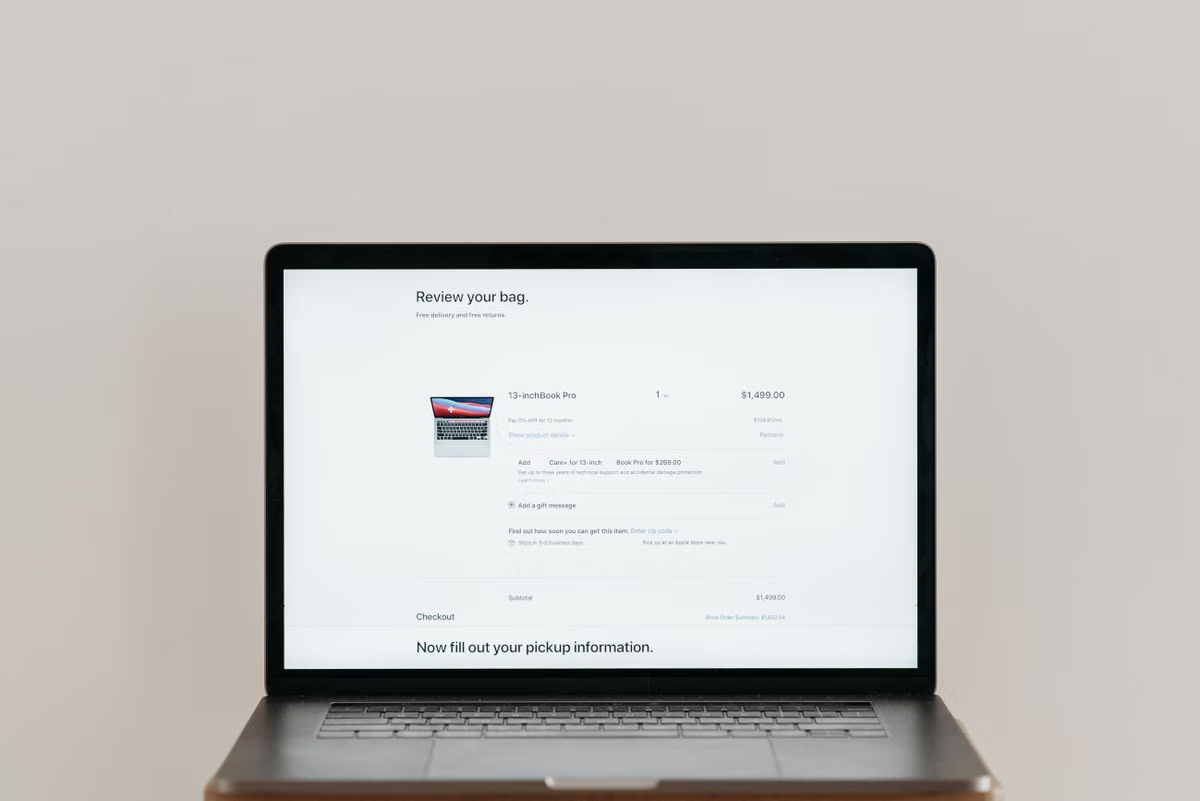
WooCommerce’s conflict-testing guide recommends changing one factor at a time to isolate a problem (WooCommerce conflict testing). If Safari checkout keeps spinning, first reproduce it in a real Safari environment and preserve evidence. Then check the browser console, network requests, and store configuration. If other browsers work, isolate theme or plugin conflicts in staging; do not blindly disable payment or caching features on the live store.
This guide is for you if you operate a WooCommerce store and need to document a Safari checkout failure, maintain its theme or plugins, or approve checkout testing for buyers in different markets.
Before changing anything: protect orders and capture the symptom
A spinning indicator does not tell you which part of checkout failed. The cart may be updating, a payment field may be waiting for a script, or the order may already exist while the page fails to show confirmation. Start by identifying the precise point where the buyer experience stops.
Record the evidence in a private incident note:
- The page URL and the time of the test.
- The Safari version and macOS version used for the reproduction.
- Whether the issue occurs in the cart, checkout form, payment step, or confirmation screen.
- The visible symptom: continuous spinner, blank payment area, stale order summary, error message, or no response after submission.
- Whether an order was created and what status the store shows.
- The exact product, test address, account state, and actions needed to reproduce it.
Use a staging site for experiments whenever possible. On a live store, do not switch off payment, security, or cache components just to see what happens. That can change the buyer experience or remove useful protections while customers are placing orders.
Capture screenshots only when they help show the state of the page. Before sharing them, hide names, email addresses, addresses, order details, tokens, and payment data. Browser logs can contain sensitive values too, so review them before sending them to a contractor or support team.
Reproduce the problem in Safari
The first comparison should change the browser, not the checkout scenario. Use the same product, address, account state, and sequence of actions in Safari and another browser. If you change several details at once, you will not know whether a different result came from Safari or from the test setup.
Keep a short record for each attempt:
| Evidence to compare | Safari test | Other-browser comparison |
|---|---|---|
| Product and cart contents | Use the same test item and quantity | Match the Safari cart |
| Address and account state | Use the same test address and sign-in state | Keep those details unchanged |
| Stuck point | Note the exact checkout section | Record whether that section advances |
| Order result | Check whether an order was created and its status | Check the same store records |
| Page after refresh or return | Note whether the spinner or order summary changes | Record any difference |
This comparison can help you decide which evidence to gather next. If both browsers fail at the same point, start by checking the store configuration and shared checkout components. If only Safari fails, focus on Safari’s errors and requests, then test the site’s scripts and integrations in staging. Neither result by itself proves the cause.
A desktop Safari test does not establish how checkout behaves on an iPhone. If mobile Safari matters to your buyers, schedule a separate test on an iPhone or a verified device-testing setup. Keep device type and operating-system details with the result so the maintenance team knows what was actually tested.
Inspect Safari’s console and network requests
Safari’s developer features must be enabled before you can inspect page diagnostics. Follow Apple’s instructions for enabling Safari developer features, then open the developer tools for the affected checkout page.
Start with the console. Look for JavaScript errors that appear when the page enters the stuck state. Note the error text, script or file reference, and the action that triggered it. WooCommerce’s guidance explains how to troubleshoot JavaScript errors; use it to investigate the evidence rather than treating every console warning as a confirmed fault.
Next, inspect network activity around the same action. Look for requests that fail, remain pending, or return an unexpected response when the spinner appears. Compare the timing of a request with the visible change: for example, a payment field disappearing, a total not refreshing, or the page never moving to confirmation.
Use this evidence table to connect observations rather than jump to a diagnosis:
| Observation | What to verify next | What not to assume |
|---|---|---|
| A console error appears at submission | Match its timestamp and script reference to the action | That the first visible error caused the checkout failure |
| A request fails or remains pending | Record the request type and response details you can safely share | That every failed request is essential to checkout |
| Payment fields are missing | Check whether the payment component loaded and whether the issue repeats | That Safari itself or the payment provider is automatically at fault |
| The summary does not update | Inspect the relevant request and reproduce with unchanged cart details | That clearing all cache will fix it |
| The order exists but confirmation is absent | Verify the order status and payment outcome in the store | That the buyer should submit payment again |
Do not post full request headers, cookies, authorization values, tokens, or customer information in a public ticket. Preserve only the parts needed to explain the failure, and send sensitive evidence through an approved private channel.
A console message is a clue, not a root-cause statement. Tie it to a repeatable checkout action and a matching visible or network symptom before you change the site.
Check WooCommerce pages and site state
Once you have a repeatable symptom, check whether the store’s checkout pages and settings match the intended setup. WooCommerce’s slow or non-working store troubleshooting guide covers common diagnostic checks. Its advanced settings documentation can help you verify the configured pages and related options.
Compare staging with production, including recent changes to the theme, checkout customizations, plugins, and performance settings. WooCommerce’s system status report guide explains how to generate a report containing information useful for diagnosing the site environment. Review it before sharing: remove private values and include only what the person investigating needs.
Pay particular attention to whether cart, checkout, or account pages are being cached in a way that conflicts with the current store setup. Do not clear every cache or exclude broad site areas as a default fix. First identify the relevant cache layer and compare its behavior with the evidence from the affected page. A change that makes one Safari attempt work is not enough if it also changes cart or order behavior for other buyers.
Use this decision path:
- If the same failure appears in Safari and another browser, check the configured pages, shared checkout components, and recent site changes first.
- If the problem occurs only in Safari, preserve the browser evidence and proceed to controlled staging tests.
- If an order is created despite the spinner, verify order and payment status before retrying; otherwise, you may create duplicate attempts.
- If the test cannot be reproduced reliably, gather more consistent evidence before changing production settings.
Isolate theme and plugin conflicts in staging
A staging test should answer a specific question, not just change settings until the page appears to work. Before testing, save the current configuration and confirm how you will restore it. Record the starting theme, active checkout-related plugins, and relevant optimization settings.
Follow WooCommerce’s theme and plugin conflict-testing process. Keep each test controlled:
- Reproduce the original issue on staging using the same browser and checkout steps.
- Change one factor, such as the theme or a relevant plugin, while keeping the rest of the test conditions stable.
- Repeat the same checkout path and record whether the original symptom changes.
- Restore the tested factor if the result is unclear, then test the next plausible factor separately.
- When a change appears to affect the result, repeat the comparison before assigning the cause.
This method helps distinguish a theme or plugin conflict from a broader issue involving scripts, payment components, caching, or hosting. It does not prove a cause from one successful reload. Stronger evidence comes from a repeatable result under the same conditions, especially when restoring the original factor brings the problem back.
| Test result | Reasonable next action | Handoff evidence |
|---|---|---|
| Failure follows a specific theme change | Ask the theme maintainer to inspect the relevant checkout behavior | Theme version, test condition, and repeatable symptom |
| Failure follows a checkout-related plugin change | Share the console or request evidence with that plugin’s maintainer | Plugin state and the matching checkout action |
| Failure changes with a cache or optimization setting | Review the affected page and setting scope with the site maintainer | Before-and-after configuration and the browser result |
| No single change isolates the issue | Escalate with the full reproduction record | Staging-versus-production differences and sanitized diagnostics |
Do not leave unrelated plugins disabled after a test. Restore the intended staging configuration, then confirm that debugging output is not exposed to buyers. Keep any production change separate from the diagnostic experiment and agree on a rollback plan before applying it.
Verify the repair and hand off the result
A fix is not ready for handoff just because the spinner disappears. Repeat the original path using the same product, address, Safari environment, and action sequence. Then confirm that the page response matches the store record.
For a test payment, follow the payment method’s current instructions and the store’s configured test process. WooCommerce documents how to test orders; use that guidance alongside the payment provider’s requirements. Do not use real buyer payment details for a diagnostic test.
Complete this acceptance checklist before closing the issue:
- [ ] The original Safari reproduction steps have been repeated after the change.
- [ ] The page advances through the affected checkout stage without the original symptom.
- [ ] The order record, payment result, and on-screen confirmation agree.
- [ ] Any relevant Safari console error or failed request has been checked again.
- [ ] The test conditions identify the device type, macOS version, Safari version, and staging or production environment.
- [ ] Staging-only settings and temporary debugging output have been removed or restored.
- [ ] Screenshots and logs are sanitized, and the handoff names an owner and next action.
If the result passes only on desktop Safari, label it as a desktop test; do not report it as verified on iPhone. If checkout still fails, hand off the reproduction steps, relevant sanitized evidence, recent configuration changes, and the exact order result. If the test is inconclusive, say so and gather a more stable reproduction rather than declaring a fix.
FAQ
WooCommerce checkout keeps loading in Safari
Identify whether the loop starts in the cart, form, payment step, or confirmation page. Reproduce it with consistent test details, check whether an order was created, and inspect Safari diagnostics before changing settings. If the problem is limited to Safari, use staging to investigate; a live-store plugin shutdown is not a safe first test.
Safari fails while another browser works
Compare the same checkout path and look for a Safari-specific error, failed request, missing field, or stale order summary. Do not treat a warning as proof. Match the diagnostic evidence to the visible failure, then test likely site changes individually in staging.
Finding a theme or plugin conflict
Use a staging copy, preserve the original setup, and change one relevant factor per test. Repeat the same actions and restore the factor if the result is unclear. A consistent change in behavior is useful evidence, but a single successful reload does not establish the root cause.
Retesting without affecting live orders
Prefer staging and use the payment method’s supported test process. Repeat the original Safari steps, then check the order record, payment result, and confirmation screen together. Keep customer information and credentials out of shared logs, and remove temporary debugging output before handing the change back.
If your current test setup relies on one employee’s Mac, borrowed hardware, or a browser comparison that does not match a real macOS environment, it can be difficult to reproduce the same Safari conditions across handoffs. Those approaches can also leave gaps between desktop and mobile testing, while changing production settings to compensate risks affecting live orders. For occasional, repeatable macOS checks, a remote Mac can provide a separate testing environment; it cannot repair WooCommerce or guarantee a successful payment. Review KVMFLUX remote Mac use cases first, then compare the available plans with your testing frequency. If the team already has dependable Mac access, keep using it; rent only when a consistent test environment solves a real operational gap.
Further Reading
- Validate Safari purchase events and trace an order from checkout to its conversion record.
- Use a repeatable Safari testing checklist to check checkout, payment handoffs, and browser regressions.
Reproduce Safari Checkout on a Real Mac
Rent a dedicated KVMFLUX Mac mini M4 to investigate checkout behavior in Safari on real macOS. Connect over VNC to compare the buyer journey in Safari with other browsers. Use a day rental for a focused troubleshooting session without buying hardware. Choose a region and billing period, then connect to your Mac in minutes.