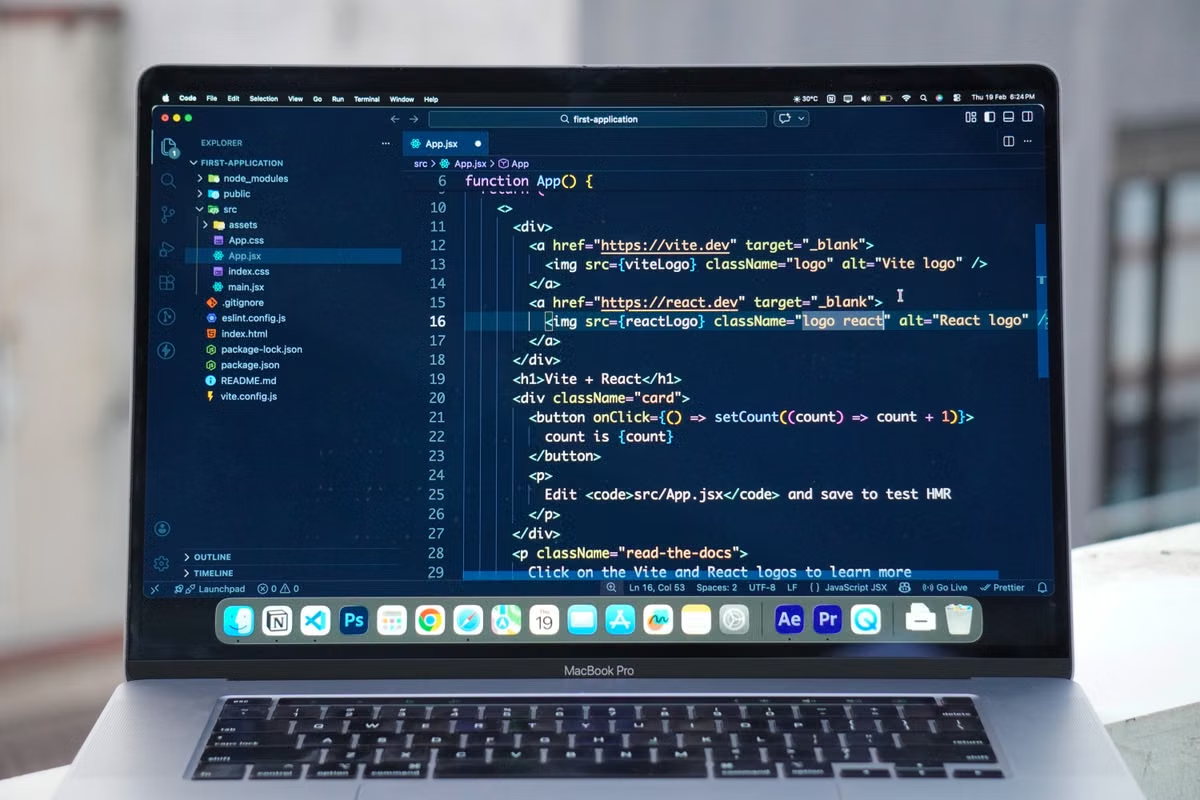
Symptoms: Codex app opens, but projects, approvals, or recovery fail when you are away from the desk.
Fastest fix: install it only on a remote Mac that meets the official system and account conditions, then pass the permission, long-task, and recovery checks before relying on it for client work.
This article is for developers traveling with only an iPad, a Windows ultralight laptop, or another temporary device while still needing macOS tools. It is also for freelancers running several projects and technical consultants preparing a short-term remote macOS environment.
Last updated September 23, 2026. Platform, account, safety, and remote-development claims were checked against the official Codex app announcement, Codex access overview, and related official documentation.
Installation boundary
The first decision is not simply whether Codex app can be downloaded. You need to establish three separate outcomes:
- The application installs and launches.
- Your account can authenticate and create or receive work.
- A real project can be read, changed, tested, reviewed, and recovered through your remote setup.
A remote Mac can satisfy the first condition while failing the other two. A login may be blocked by an account or organization policy. A project may exist in a repository that the remote Mac cannot reach. A task may pause for approval while you are in an airport queue and unable to see the prompt.
Codex app, Codex CLI, Codex web, IDE extensions, SSH access, and a remote desktop are not the same execution location. Official materials describe Codex through several entry points, including a macOS application, CLI, IDE integrations, and web access. That does not mean a browser session or SSH shell automatically provides the same permissions or project context as the app on the Mac. Review the official Codex access explanation before treating one entry point as a substitute for another.
The remote Mac should be treated as the execution environment. Your iPad, Windows laptop, browser, SSH client, or remote desktop should be treated as a control path. Keeping these roles separate prevents a common purchasing mistake: choosing a remote access method and assuming it proves that Codex is running correctly on the host.
Can Codex app be installed on a remote Mac?
Yes, if that Mac satisfies the current official platform, account, application, and permission requirements. The statement is conditional. A rental provider may offer a real Mac with administrator or root-level access, but root access does not override account eligibility, application support, organization controls, or an unavailable repository.
Account and launch failures
When the app does not work, classify the symptom before changing the environment. The classification determines whether you should repair the setup, run a short test, or stop the deployment.
| Observable symptom | What to verify | Evidence to retain | Decision |
|---|---|---|---|
| Cannot install or launch | Supported macOS environment, processor architecture, application source, and update state | Installer result, launch message, system details | Stop until the official requirement is satisfied |
| Installs but cannot sign in | Correct OpenAI account, plan or organization access, browser handoff, and local user session | Sign-in result and account context | Do not infer access from root privileges |
| Signs in but cannot create work | Project visibility, account entitlement, organization policy, and app state | Creation error, policy message, project identifier | Run only a low-risk test |
| Creates work but cannot finish | Repository access, local permissions, network access, approval prompts, and test commands | Logs, permission requests, test output | Do not use for unsupervised delivery |
The account check should happen before you migrate a large project. Verify that the intended user account is active and that the organization has not restricted the relevant Codex capability. Official help material explains that Codex access can depend on the ChatGPT plan and organizational administration; consult the official plan and Codex usage guidance and the official organization and administration FAQ.
Do not use a shared account for a travel deployment simply because it is quicker. A shared login makes it harder to identify who approved a change, which project was exposed, and whether a later user can access retained credentials. For a temporary consultant environment, use a separate local user where practical, keep project credentials scoped to the test repository, and remove access before the lease ends.
Attention: An application permission dialog is an operational dependency. If nobody can see or approve it while you are traveling, the task is not unattended even if the Mac remains online.
Project access and approval boundaries
A successful launch is not a successful delivery. The project test must cover four distinct actions: reading files, modifying files, running tests, and reverting the change.
Start with a disposable or low-risk repository. Place it in a directory that the remote Mac can access without an undocumented mount, disconnected volume, or local path that exists only on your primary computer. Confirm the active branch, worktree location, ignored files, and repository status before allowing an agent to edit anything.
What permissions does Codex app need on a remote Mac?
It needs more than the ability to open the application. You must validate account authorization, local user access to the project directory, permission to modify files, permission to run the required commands, and network access where the project or tools require it. Some tasks may also require explicit human approval. The official Codex safety guidance explains why approval boundaries and isolated project access matter.
Use this sequence:
- [ ] Open the remote Mac session and confirm the intended local user.
- [ ] Confirm the project path is present and readable.
- [ ] Ask Codex app to inspect a harmless file without changing it.
- [ ] Request one small, reversible edit.
- [ ] Run the project’s normal test or validation command.
- [ ] Review the diff and confirm no unrelated files changed.
- [ ] Revert the test change through the project’s normal version-control process.
- [ ] Repeat the test through your planned backup control path, such as SSH or a browser.
- [ ] Record every prompt that requires a human decision.
This sequence exposes hidden boundaries. File reading may work while terminal execution is blocked. Local edits may work while network access fails. A remote desktop may display the app but hide a prompt after the session disconnects. Conversely, SSH may provide command-line recovery but cannot replace a graphical approval flow if the task specifically depends on the app interface.
How can you control Codex app on a remote Mac from an iPad?
Use the iPad as a control device through a compatible remote-desktop connection, browser-based control path, or SSH client where the required operation is available. The iPad does not move the app onto the tablet; the app remains on the remote Mac. Test text input, clipboard transfer, screen scaling, authentication, and approval visibility before travel. If the only working route is a fragile graphical session, keep a second control path.
For a professional workflow, define the recovery action for each failure:
- If the app is visible but a task is waiting for approval, connect through the remote desktop and handle the prompt.
- If the graphical session is unavailable, use SSH to inspect logs, repository status, and running processes where appropriate.
- If the project path is missing, stop the task rather than recreating files from memory.
- If network access fails, preserve the local diff and defer external operations.
- If credentials are requested again, do not paste secrets into an unverified prompt.
Remote engineering workflows can involve remote development boxes, SSH connections, and multiple agents, but the official description does not guarantee identical behavior on every hosted Mac or for every project. Use the official remote engineering workflow guidance as a design reference, then validate your own host.
Session continuity
Long tasks create a different risk from installation failure. The question is whether the work continues, pauses safely, or becomes impossible to recover when your control device disconnects.
Will a Codex app task continue after the remote desktop disconnects?
Do not assume it will. The result depends on how the task is running, whether it needs an interactive approval, whether the remote session disconnects or logs out, and whether the host enters lock, sleep, restart, or another state. Treat continued execution as an observed property of your tested setup, not as a universal feature.
Run these tests separately rather than disconnecting once and declaring success:
- Start a short task that creates a clearly identifiable log or file.
- Disconnect only the remote desktop while leaving the host session otherwise unchanged.
- Reconnect from a second device and inspect the task state.
- Repeat after a network interruption.
- Test the difference between screen lock, user logout, sleep, and host restart.
- Check whether the task stopped at an approval request.
- Confirm that logs, diffs, and repository status remain available.
- Attempt to resume from another control path.
- Record the exact failure state and the smallest safe recovery action.
Do not invent a guaranteed background duration or success rate. The supplied official sources describe product entry points, safety boundaries, and remote workflows, but they do not establish one universal runtime guarantee for every remote Mac rental environment.
For multi-project work, isolate the tests. Switching between repositories can expose incorrect working directories, shared environment variables, stale credentials, or an approval prompt belonging to another project. Parallel agents add another layer: you must identify which agent changed which files before accepting a result.
The safest default is to use foreground interaction for high-impact changes, SSH as a diagnostic and recovery route, and a browser or remote desktop for visual confirmation. A background task is acceptable only after the project, permissions, logs, and rollback process have passed the same low-risk test.
Travel recovery drill
Complete this drill before your departure date, not after the first airport connection fails. A reliable travel setup needs a primary path and a documented fallback.
- [ ] Connect from the network you normally use at home.
- [ ] Switch to a different Wi-Fi network and repeat sign-in or host access.
- [ ] Test a personal hotspot or another permitted connection.
- [ ] Open the remote Mac through the primary control method.
- [ ] Open Codex app and confirm the expected account context.
- [ ] Access the test repository and inspect its branch.
- [ ] Run one harmless task and capture its output.
- [ ] Disconnect the primary control path.
- [ ] Reconnect from the iPad or Windows laptop.
- [ ] Use SSH or another backup route to inspect the repository state.
- [ ] Restart the remote Mac only after saving the test state.
- [ ] Confirm the app can be opened again.
- [ ] Check whether system or application permission prompts need attention.
- [ ] Confirm the repository, logs, and pending work remain identifiable.
- [ ] Remove test credentials and temporary files after the drill.
A host that is reachable only through one graphical route should not become your sole work environment for client delivery. A short rental or dual-track setup is the better decision when you cannot test a backup route, cannot observe approval prompts, or cannot restore the environment after a restart.
KVMFLUX can be considered when you need a real remote Mac for this acceptance process rather than a simulated macOS workflow. Review the available remote Mac use cases and treat the first deployment as a controlled test, not as an automatic replacement for every local device.
Decision matrix
Use the following table after completing the tests. The labels describe operating decisions, not product guarantees.
| Work pattern | Recommended approach | Minimum evidence before travel | Fallback |
|---|---|---|---|
| Small code reviews and documentation edits | Direct remote Mac use is usually reasonable after access testing | Read, edit, review, and revert work correctly | Browser or SSH inspection |
| Web maintenance with low-risk changes | Remote Mac plus a tested backup route | Repository access, tests, rollback, and approval visibility | Local temporary device for review |
| macOS-specific development tools | Remote Mac is useful, but validate every required tool | Tool launch, project access, build or test command, recovery | Keep a local or alternate Mac path |
| Several client projects | Use separate project checks and explicit account boundaries | Independent paths, logs, branches, and credential scope | Pause high-risk work until manually reviewed |
| Long-running or background tasks | Use only after disconnect, restart, and approval tests | Reconnection, state preservation, and safe stop behavior | Foreground execution or local fallback |
| Physical-device debugging or external hardware | Do not rely on a remote Mac alone | Confirm the required hardware path exists and is reachable | Keep a nearby device and local tooling |
A second table helps select the deployment length.
| Acceptance result | Action now | Rental or ownership implication |
|---|---|---|
| Install, sign-in, project test, and recovery all pass | Proceed with the planned workflow | A longer remote arrangement may be reasonable |
| Installation works but approval handling is uncertain | Run a short controlled test | Do not make it the only delivery environment |
| Project access or terminal execution fails | Repair the environment first | Delay migration or use a separate host |
| The host works but has no backup control path | Use dual-track access | Keep a local or alternate recovery device |
| Restart or network recovery is unverified | Do not schedule critical unattended work | Perform the drill before extending the term |
| The task needs local hardware or constant human interaction | Keep a nearby execution path | A remote Mac should remain supplemental |
Is Codex app suitable for long-term remote development as a digital nomad?
It can be suitable for low-risk, well-tested workflows where you can reach the host, inspect approvals, recover after interruptions, and restore project state. It is not a safe sole environment for every workload. Physical-device debugging, continuous manual authorization, sensitive client delivery, and undocumented recovery steps justify a local or dual-track fallback.
Can a remote Mac replace a local MacBook for Codex work?
It can replace the execution location for some software projects, but it does not remove network dependence, control-path failures, account restrictions, or recovery duties. The lighter travel device becomes a terminal and control surface; the remote Mac carries the macOS environment. That division is useful only when both sides have been tested.
Final operating choice
If you currently carry a MacBook everywhere, the disadvantages are physical loss or damage risk, duplicated local environments, battery and charging dependence, and the difficulty of restoring a configured development machine after an incident. If you use a generic cloud development box instead, you may lose access to macOS-specific tools, graphical applications, or the exact local project workflow your client requires. A remote Mac can improve the travel setup by keeping the macOS execution environment online, but only when permissions, approvals, network recovery, and project rollback are already documented.
For a temporary assignment, a short KVMFLUX rental is a sensible way to run the full Codex app acceptance drill against a real project before choosing a longer arrangement. You can compare available plans on the KVMFLUX pricing page, but the correct next step is not the longest term by default: choose enough time to test installation, one real low-risk delivery, a network change, a disconnect, and a restart. If those checks fail, keep a dual-track workflow or use a local device for the affected work instead of treating the remote Mac as your only recovery path.
Further Reading
- Review Codex, Xcode, and project privacy boundaries before connecting an agent
- Validate remote Mac access, builds, recovery, and security before committing to long-running development
Build Reliably on a Remote Mac
Deploy a dedicated remote Mac with KVMFLUX and access your development environment from anywhere. Run desktop apps, projects, and long-running tasks on a Mac that stays available when you disconnect. Keep your files, permissions, and working environment under your control with a practical remote setup. Choose KVMFLUX when you need a dependable Mac workspace for development, testing, and daily work.